How to Choose a 4x2 HDMI Matrix Switch?
Choosing the right 4x2 Hdmi Matrix Switch can seem simple until four source devices compete for two displays. A laptop, game console, streaming box, and Blu-ray player may all need different video settings. The switch must route each source reliably without forcing constant cable changes. That is the real test.
In this guide, we examine the practical details that influence a buying decision. HDMI bandwidth matters, especially for 4K at 60Hz, HDR content, and higher color depth. HDCP compatibility also deserves attention. A device may support 4K resolution but fail with a protected movie or streaming service. Check the specifications carefully.
We will also consider EDID management, audio extraction, remote control quality, and switching speed. These features affect daily use more than attractive packaging. In a small meeting room, a delayed switch can interrupt a presentation. At home, unstable handshakes may produce a black screen after every device change. Annoying, but common.
Look beyond resolution claims.
A reliable 4x2 Hdmi Matrix Switch should match your complete system, not just one display. Confirm the input and output versions, cable lengths, audio formats, and power requirements. User reviews can reveal heat problems, weak remotes, or confusing controls that technical charts overlook. Still, reviews are not perfect evidence.
We will compare essential features, useful extras, and avoidable compromises. The goal is not to find the most expensive model. It is to select a stable, compatible switch that works quietly in real conditions. That decision requires patience, practical testing, and a willingness to question impressive specifications.
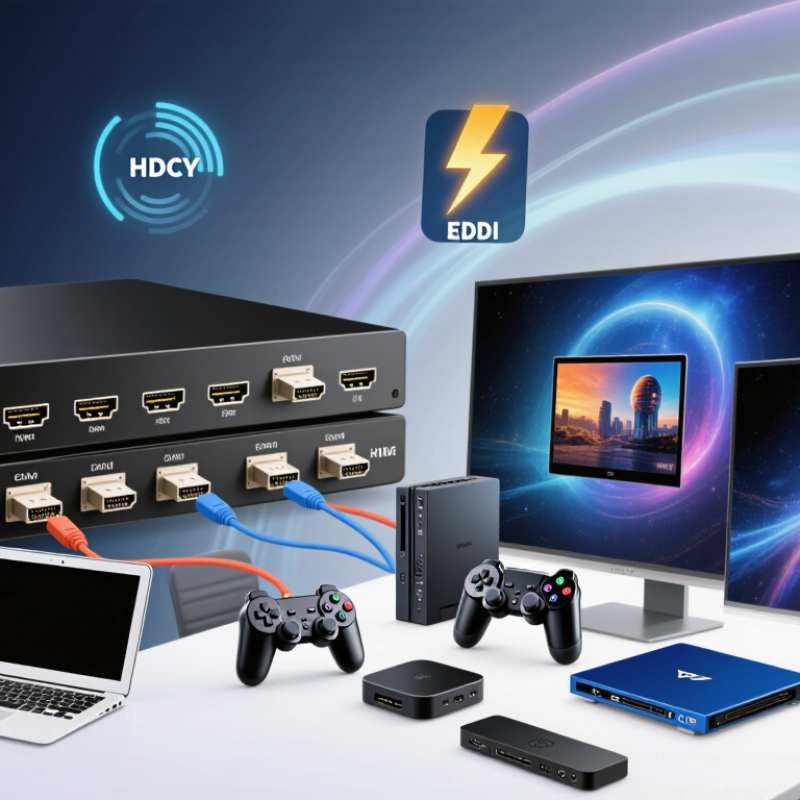
What a 4x2 HDMI Matrix Switch Is and How It Works
A 4x2 HDMI matrix switch accepts four HDMI sources and sends them to two displays.
Each output can show the same source or a different one. For example, a game console can appear on a monitor while a media player appears on a television.
The switch does not create new video. It routes existing signals.
Inside, the matrix reads the source and display information through HDMI handshaking. EDID helps each source select a suitable resolution and refresh rate. HDCP manages protected content between compatible devices.
If the settings disagree, the screen may flicker, turn black, or lose audio. Signal quality also depends on cable length, resolution, and connector condition. Higher resolutions need greater bandwidth.
Tips:
Check the switch’s supported resolution, refresh rate, HDR format, and audio standards. Confirm that both displays can accept the chosen signal. Short, certified cables usually reduce troubleshooting.
In real installations, automatic EDID mode is convenient, but it is not always the best choice. Manual settings can work better when two displays have different capabilities.
The first setup is rarely perfect. Test each input separately, then test both outputs together.
Also check whether remote control, front-panel buttons, or control-system integration suits your room. A matrix switch should make routing simple, not become another device to diagnose.
How to Identify Your Source and Display Requirements
Choosing a 4x2 HDMI Matrix Switch starts with identifying every source and display in your setup. List devices such as a game console, media player, laptop, and streaming box. Then record each device’s output resolution, refresh rate, HDR support, and audio format. A source may advertise 4K, but its actual output can change with settings or cable quality.
Check both displays carefully. One screen might support 4K at 60Hz, while an older projector accepts only 1080p. The matrix must handle the shared format without creating a black screen. Confirm HDCP compatibility, HDMI version, and audio return requirements. Also measure cable distances. Long runs through walls may need active or certified cables. Small details matter.
In practice, EDID management is often overlooked. This feature helps sources recognize the capabilities of connected displays. However, automatic EDID settings are not always perfect. I once tested a setup where the larger television worked, but the projector lost audio after switching inputs. Manual EDID selection fixed it, though the result required more testing. Leave room for real-world limits. Your sources, displays, cables, and audio equipment should be tested together before installation. A written signal map can expose missing ports or mismatched specifications before they become expensive problems.
Which HDMI Standards and Resolutions to Check
When choosing a 4x2 HDMI matrix switch, check the HDMI standard before counting ports. HDMI 2.0 usually supports 4K at 60Hz, while HDMI 2.1 can support higher bandwidth and advanced gaming features. However, a product may advertise HDMI 2.1 without delivering every feature. Read the bandwidth rating carefully.
Do not guess. Check HDCP compatibility, especially when connecting streaming devices, game consoles, and projectors. HDCP 2.2 or newer is important for many 4K sources. Also confirm support for HDR formats, 4:4:4 chroma, 8-bit or 10-bit color, and the exact refresh rates you need. A switch that handles 4K at 30Hz may feel poor during fast games.
Resolution claims need practical context. A 4x2 matrix may list 8K support, but both connected displays must support the required resolution and refresh rate. Check whether the switch offers downscaling, EDID management, and independent output settings. These features help when one display is 4K and another is 1080p. I once assumed automatic switching would solve this mismatch. It did not. Use certified, suitable HDMI cables, and test each input with both displays connected. Manufacturers sometimes describe maximum performance under ideal conditions, so verify the full specification sheet rather than relying on a short product title.
How to Choose a 4x2 HDMI Matrix Switch?
HDMI standards, bandwidth, and supported resolutions to check
Compare the HDMI version and bandwidth before selecting a 4x2 matrix switch. HDMI 1.4 supports up to 10.2 Gbps and commonly handles 4K at 30 Hz. HDMI 2.0 increases bandwidth to 18 Gbps for 4K at 60 Hz. HDMI 2.1 provides up to 48 Gbps and supports higher resolutions such as 8K at 60 Hz, depending on the source, display, cable, and matrix design.
How to Confirm Compatibility and Choose the Right Model
Choosing a 4x2 HDMI matrix switch starts with compatibility, not input count. CTA’s 2024 ownership study reports that more than six in ten U.S. internet households own a 4K UHD television. Therefore, check every source and display separately. Record resolution, refresh rate, HDR format, audio return support, and HDCP version. A 4K source may connect successfully, yet fail at 4K/120Hz or HDR.
Bandwidth needs careful attention. The HDMI 2.1 specification supports up to 48Gbps using Fixed Rate Link signaling. However, a product labeled “8K” may not deliver that performance on every output. Confirm the matrix’s tested bandwidth, not only its maximum resolution. Check whether both outputs can show different sources. Some 4x2 units only duplicate one selected input. That detail is easy to miss.
EDID management is equally important. The switch should offer automatic, copy, or fixed EDID modes. Match the source to the weakest connected display, especially when one screen supports 4K and another supports 1080p. Use certified high-speed cables and keep them short where possible. I once blamed a matrix for a black screen; the real problem was an aging cable. AVIXA’s 2024 industry outlook also emphasizes interoperability and system testing in professional AV installations. Test HDCP, audio, HDR, and switching before mounting the unit. My earlier assumption was too optimistic: “plug and play” is not always practical.
